Profile Settings
Select the upper left menu  to view the application options, user profile, Help file, and log out functionality.
 View account profile
- Select the upper left menu .
- Select Profile. The Profile screen opens.
Edit account profile
- Select the upper left menu .
- Select Profile. The Profile screen opens.
- Select the expand icon
 on the field you want to edit. The field opens in edit mode.
 - Make your changes and select SAVE.
Note: When entering an email address with uppercase and lowercase characters the characters are automatically converted to lowercase after the profile is saved.
Reset account password
- Select the upper left menu .
- Select Profile. The Profile screen opens.
- Select the upper right menu
 on the Profile screen.
 - Select Reset password. The Confirm Reset User Password pop-up screen displays.
- Select REQUEST RESET. The Password Reset Confirmation pop-up screen displays. The reset password email is sent to your account's email address.
Note: Select CANCEL to cancel the password reset.
- Sign out of the Transportation Courier application, or your ARUP® Connect account, to reset your account password.
- Follow the instructions in the email to reset your password.
Sync On Demand Orders
- Select the upper left menu .
- Select Sync. The Sync For On Demand Orders pop-up screen displays.
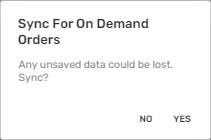
- Select YES. The application refreshes and you return to the main screen.
Note: Select NO to cancel syncing the on demand orders.
See the On Demand Orders topic for more information.