Access patient charts
You can access charts on the Results tab or the Patient Search tab.
There are three types of charts that you may view, download, print, or copy from Order Status and Results: standard charts (basic formatting), enhanced charts (color and graphic formatting), and plain text (text only) charts.
Note: Adobe Acrobat Reader is required for viewing or printing charts.
 View a chart
In the Results column, select Standard, Enhanced, or Plain Text.
Note: Standard charts that have been corrected (updated from a previous result)
will have a Corrected
link instead of Standard.
The Enhanced chart, if available, will also update when a Standard chart is corrected, however the link name does not change. Standard and Enhanced charts are synced.
When selecting the Standard or Enhanced link, the PDF chart opens in your default browser.
Standard charts include a direct access text link and a standard username/password
login text link to view an enhanced chart:
Plain Text charts include the Copy to clipboard link at the top and the bottom of the chart, which enables you to copy the chart and paste it to a selected location.
Download
Select this option to download multiple charts compiled into a .zip file.
- Select one or more charts by selecting the check box next to the patient encounter.
- Select Download at the bottom of the page, and follow your browser's prompts to open the file.
Print
Select this option to combine all selected charts into one PDF file for printing.
- Select one or more charts by selecting the check box next to the patient encounter.
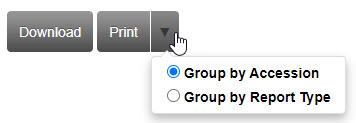
- Next to the Print button,
you can select the down-arrow to define how charts will print. You
can select Group by Accession or Group by Report (Standard together and Enhanced together).
- Select Print at
the bottom of the page, and follow your browser's prompts to open the file.
Note: If you are printing many charts, it may take longer to compile the charts into one PDF.
- Print the PDF file.