 ARUP Order Entry Help
ARUP Order Entry Help
The Quick List tab is used to create a Quick List or enter an alternate name for a test in the system. This list is accessible when ordering tests through the Order Entry screen.
Select the applicable Client from the drop-down list.
Select and add the applicable tests. See Add Tests Using Test Directory for additional information.
Click Close when you are finished selecting tests.
Enter the alternate name for each test in the Alternate Name field.
Once you are finished editing the quick list click Save. This list is now saved and may be viewed from the Order Entry screen.
Select Delete next to the test.
The
following message will appear.
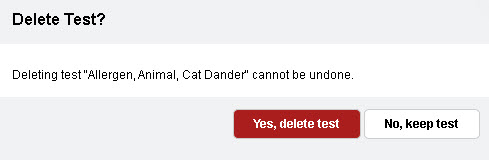
Select Yes, delete test to remove
the test. Select No, keep test
to keep
the test in the Quick List..
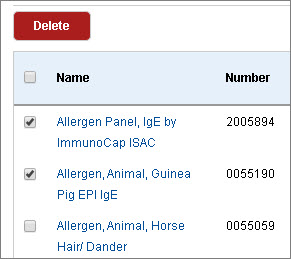
Select
check boxes next to test names and then select Delete
at the top.
The following message appears.
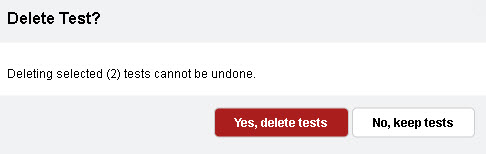
Select Yes, delete tests to remove the tests. Select No, keep tests to keep the tests in the quick list. You can also select the Esc key to close the message without making a selection.
If a test that was previously added to the Quick List becomes inactive, the test will be greyed out in the list. You will need to edit the quick list and delete the test from the list.