 ARUP Order Entry Help
ARUP Order Entry Help
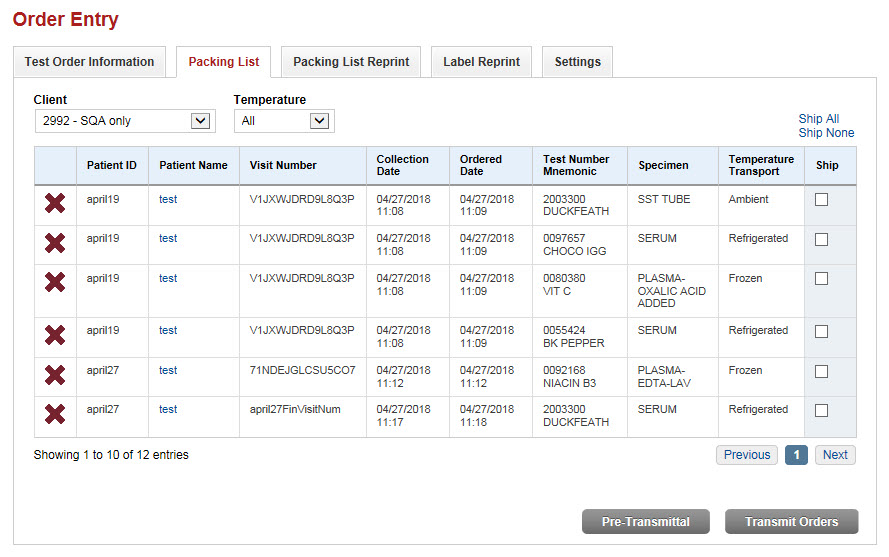
To print packing lists for orders you have entered, click the Packing List tab. You can select the orders that you wish to include for the packing lists, and print the packing list(s) preparatory to shipping specimens.
When a packing list is printed, the orders on that packing list are also transmitted electronically to ARUP at the same time. Items on the packing list are sorted by order date and time, oldest to newest.
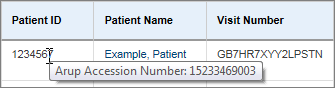
Note: Hover over a Patient ID to view the ARUP Accession Number.
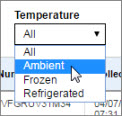
By default the list includes all temperatures of specimens. You can restrict the list to include just one temperature by selecting temperature from the transport Temperature drop-down list.
The list of tests is sorted by order date and time, oldest to newest by a default. You can sort the list in another order by clicking a column heading.
Select tests in any of the following ways. Be sure to review ALL pages in the list before printing. Note that you are not required to separate tests by temperature or transport type as the system will do that for you when it prints the packing lists.
Click the check box for each test you want to include in the packing list(s).
Click the Ship All option to mark all tests at once. This is helpful if you have marked some or all tests and wish to mark all of them.
Click the Ship None button to unmark all tests at once.
If the list is restricted to just one shipping temperature, the None and All selections will affect only the applicable tests.
If your packing list contains an inactive test, the patient encounter with the inactive test will be greyed out with the word "Inactive" by the test number. The Patient Name, for both active and inactive tests, is a link that will take you to the Order Entry tab where you can edit the order.
Remove the inactive test
by clicking  . Edit the order as desired. If you try
to save without removing the inactive test, the following message will
appear.
. Edit the order as desired. If you try
to save without removing the inactive test, the following message will
appear.

Be sure to review ALL available pages before printing.
To print a checklist to help you verify your specimens before you create a packing list, click Pre-Transmittal. The checklist opens in your web browser for printing. If the checklist does not open for printing, make sure your web browser pop-up blocker is turned off.
When you are finished selecting tests, click Transmit Orders.
The packing lists will open in your web browser for printing with separate lists printing for each temperature and transport type represented in the list. When orders are transmitted, they may not be edited and are removed from the packing list window. If the packing list does not open for printing, make sure you have your web browser pop-up blocker turned off.
To view packing lists or to reprint any packing list, go to the Packing List Reprint tab.
See Select Tests for more information about ordering and editing tests in the Order Entry tab.
Click the cancel icon  on the left side of a test
line.
on the left side of a test
line.